Connect the Server to Codex
Outcome
Register your local MCP server so Codex can discover and call it.
1) Build First
Use the terminal for the build step only:
pnpm --filter @create-something/codex-demo-mcp build
2) Open Codex App MCP Settings
Open the Codex app, then go to:
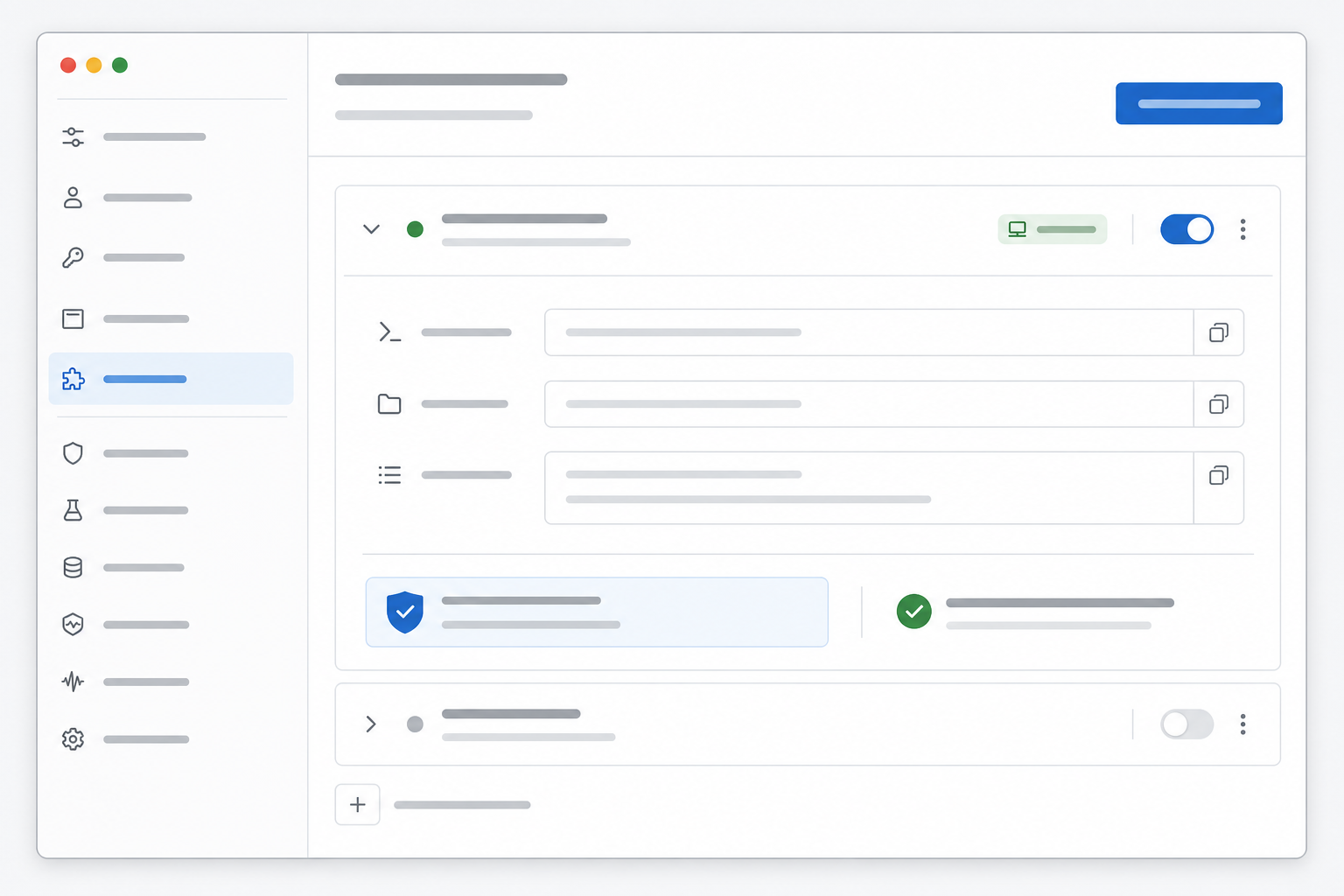
Settings -> Integrations & MCP
Use this app surface as the main operator experience. The terminal is only supporting the local build and the MCP server process.
OpenAI's Codex app settings documentation identifies this as the place to connect external tools through MCP, enable recommended servers, add your own server, and complete OAuth flows when a future server requires them. The same documentation notes that MCP configuration is stored in config.toml, which lets the app and other Codex surfaces share the same server setup.
If the app offers an Add MCP server flow, add a local stdio server with:
Name: codex-demo
Command: node
Args: /absolute/path/to/repo/packages/codex-demo-mcp/dist/index.js
Environment: RAPIDAPI_KEY=your_rapidapi_key
For advanced setup, open the Codex config from the app settings and add the same server in config.toml:
[mcp_servers.codex-demo]
command = "node"
args = ["/absolute/path/to/repo/packages/codex-demo-mcp/dist/index.js"]
If a server needs environment variables, put them in local config or a secret manager. Do not commit credentials to the repo:
[mcp_servers.codex-demo]
command = "node"
args = ["/absolute/path/to/repo/packages/codex-demo-mcp/dist/index.js"]
env = { RAPIDAPI_KEY = "your_rapidapi_key" }
Do not commit credentials to the repo. Keep RapidAPI keys in local Codex app configuration or a secret manager.
3) Verify Registration in the App
Return to Settings -> Integrations & MCP and confirm codex-demo is enabled.
4) Reload Codex Session
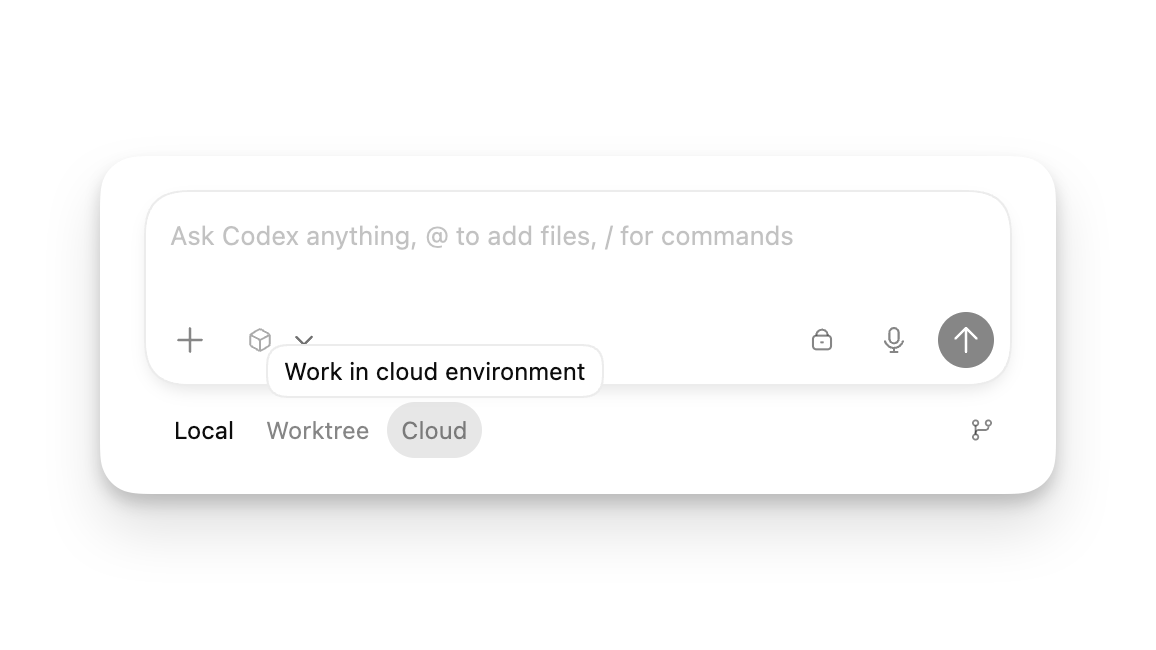
After saving config, restart the Codex app session so the new server is discovered. If you are inside a long-running thread, start a fresh session before treating a missing tool as a server bug.
5) Verify in Chat
In the Codex app, ask:
Use the codex-demo MCP tool find_local_businesses to find five coffee shops in Austin, TX.
If connected correctly, you should see a response with a count and structured business records. Review the result before making claims about the market.
Auth Note
The local stdio server in this course does not need an OAuth login flow. If a future MCP server uses OAuth, let the Codex app start and manage that auth flow from its MCP settings.
Checkpoint
At this point you should be able to prove:
- Codex knows the server name.
- The server command points at the built file.
- The server has access to
RAPIDAPI_KEYthrough local configuration. - The tool is discoverable in a fresh Codex app session.
- A real Codex app prompt can call the tool and read structured local business data.
Official References Used
- Codex app settings: MCP server configuration lives under Settings -> Integrations & MCP.
- Codex config basics: user-level and project-level
config.tomllocations and precedence. - Model Context Protocol in Codex: how Codex reads MCP server configuration.
Next
Continue to Test, Debug, Iterate.